01 – Enable Notification Permissions
To allow your organization to send notifications to you, you need to grant notification permission to Push365.
This is done using the “Push365 | Subscription App” model-driven application.
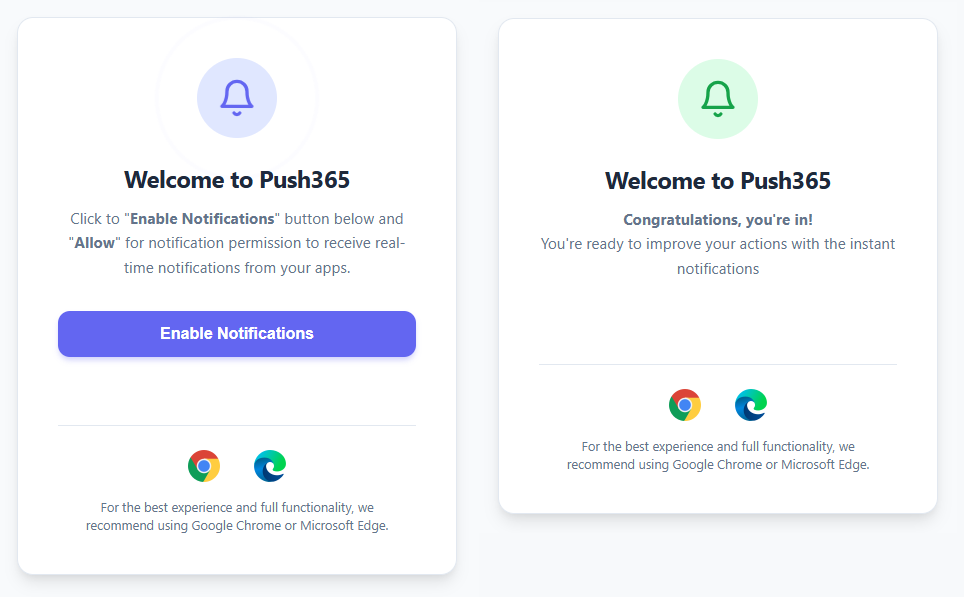
When you open the app, you’ll see the subscription screen. Click the “Enable Notifications” button (purple button), then select Allow in the permission prompt that appears.
Once the process is complete, you’ll see the message “Congratulations, you’re in!”
That’s it—you’re now ready to receive notifications from Push365.
Please note! Some changes have been made to Push365 since the video was created (before releasing the V2 production-ready solution). One of these is the Notification Permission screen. In the current version, the permission screen looks like this:
For more details, please watch the following video.
For more content, visit our YouTube channel